Duplicate photos take up space and make your library harder to browse. This guide shows how to find and remove duplicates from the Mac Photos app safely, using a dedicated album so you stay in control.
Let PictureEcho read your Photos library (with your permission).
Run a duplicate scan and see which photos are duplicates.
Send only the duplicate photos into a single album in Photos.
Delete those photos yourself inside Photos, so nothing is removed without you confirming.
PictureEcho for Mac does not delete anything from your library. It only gathers duplicates into one album. You decide when and how to delete them in the Photos app.
Step 1: Give PictureEcho Access to Your Apple Photos Library
PictureEcho needs one-time access to your Photos library so it can read the catalog and later add photos to an album.
Open PictureEcho and go to the Library Scan section.
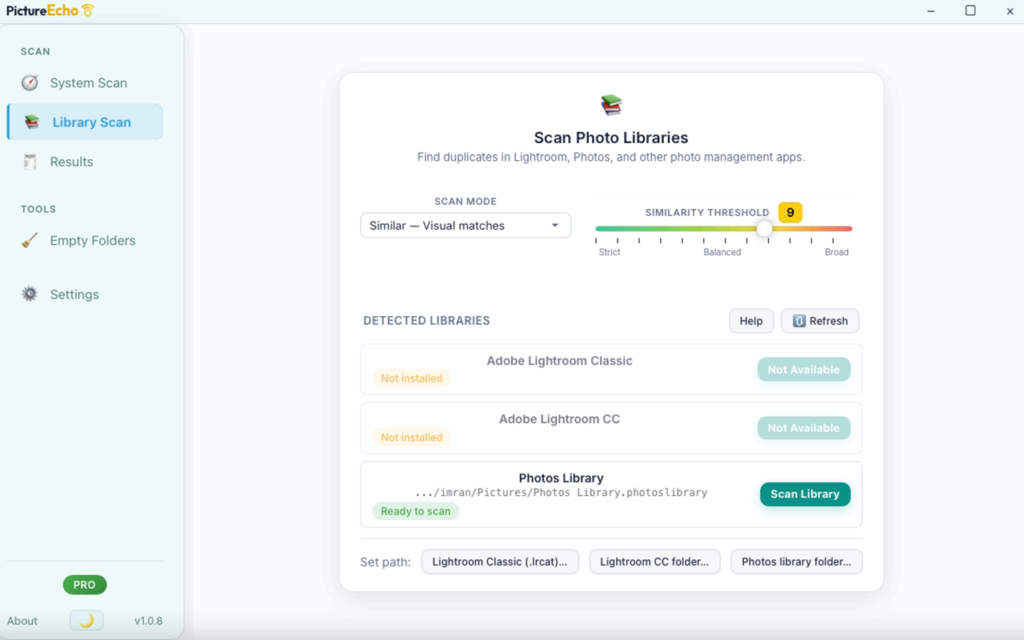
If your Photos Library is listed, click Scan next to it.
When MacOS asks for access, it opens your Pictures folder (or wherever your library lives) select Photos Library.photoslibrary.
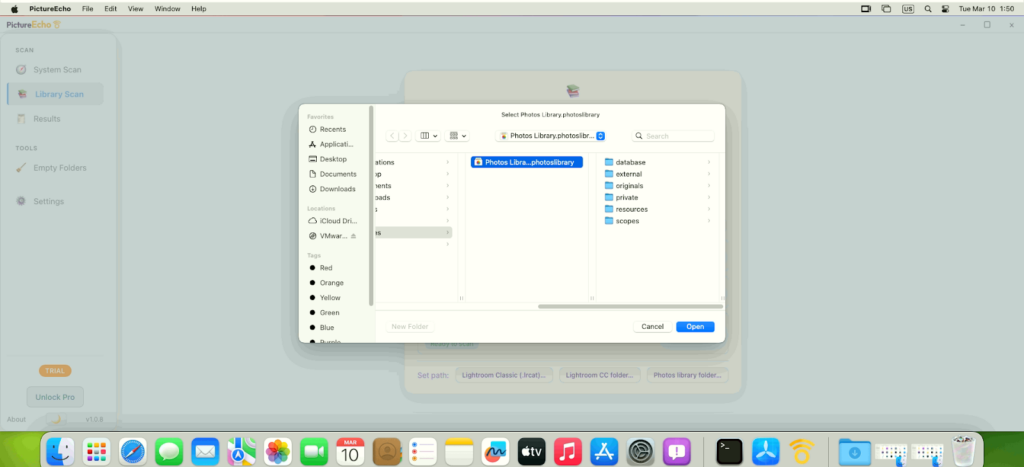
Confirm the path. After that, PictureEcho can use this library for scanning. You may need to grant this only once per library.
Step 2: Run the Duplicate Scan
With your Photos library selected, choose how strict the duplicate detection should be:
Similar – finds near-duplicates (e.g. same shot with small edits). Use the slider to adjust sensitivity.
Exact – finds only pixel-identical copies.
Click Scan (or Start Scan). PictureEcho reads the catalog and finds duplicate groups.
Wait for the scan to finish. You’ll see duplicate groups on the main results dashboard.
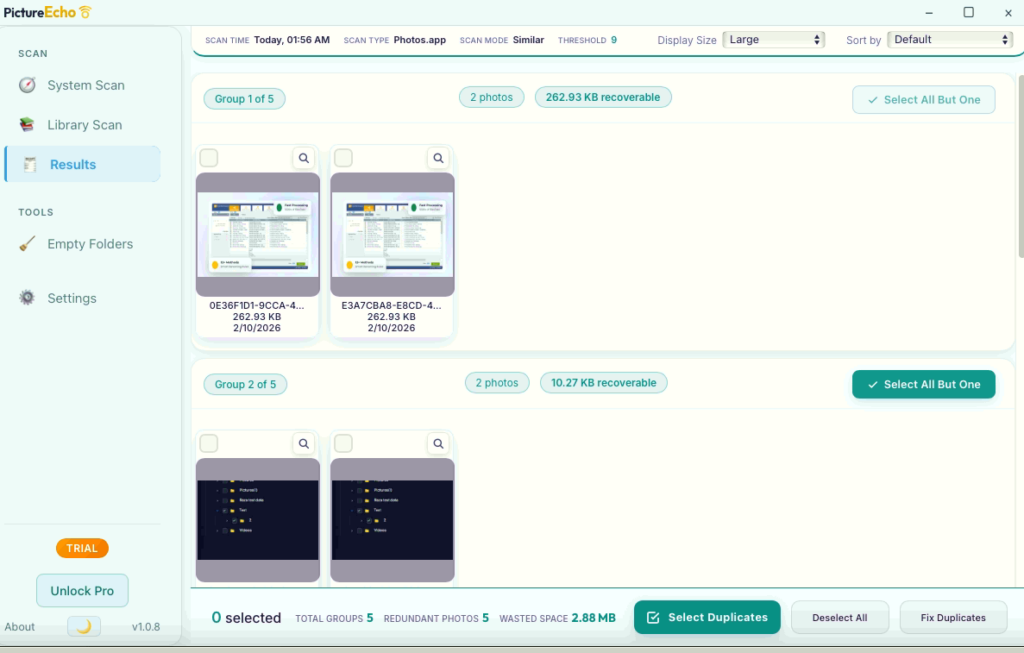
Step 3: Review Duplicates and Choose What to Clean Up
On the dashboard, each group is a set of duplicate photos.
By default in an individual group selection, duplicates are selected so that one “keeper” stays and the rest are marked for cleanup. You can change which photo is kept by selecting or deselecting thumbnails.
Use Select duplicates menu or pick specific groups until you’re happy with what will be sent to the cleanup album.
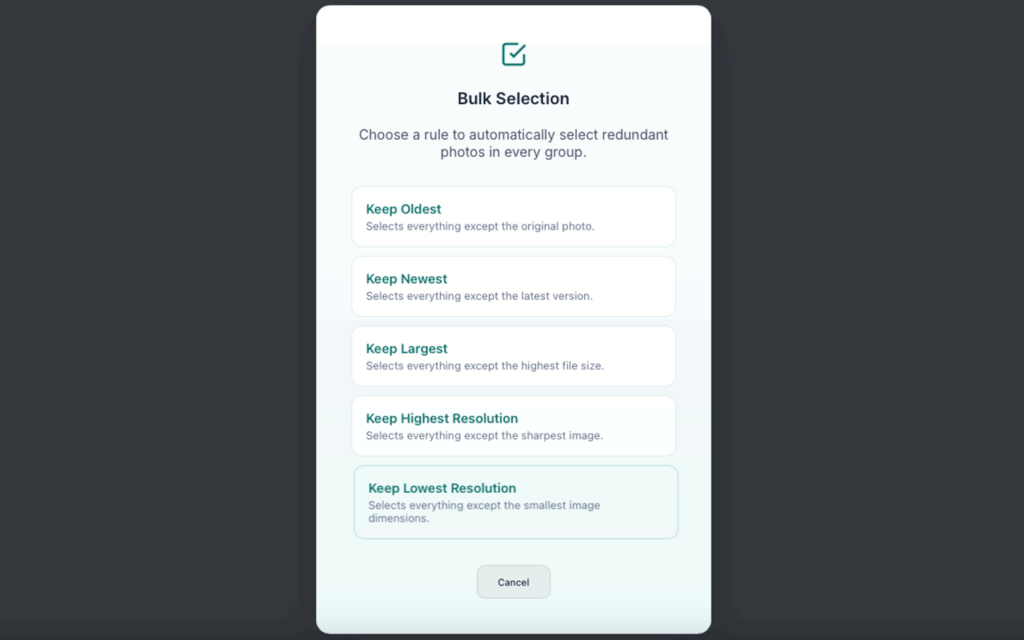
Step 4: Send Duplicates to a Safe Album (Fix Duplicates)
PictureEcho does not delete anything. It only adds the chosen photos to a single album in the Mac Photos app. You will delete them yourself in the next step.
Click Fix Duplicates.
Read the confirmation: the selected photos will be added to an album named “Duplicates by PictureEcho” in the Apple Photos app.
If macOS asks for Photos library permission (e.g. “PictureEcho would like to add photos to your library”), allow it so the app can create the album and add the photos.
Confirm. PictureEcho creates the album (if needed) and adds the selected duplicate photos to it. When it’s done, you’ll see a success message reminding you to open Photos and delete the photos from that album.
Your main library and other albums are unchanged; the duplicates now also appear in one place: Duplicates by PictureEcho.
Step 5: Delete Duplicate Photos Mac
The actual removal happens in the Photos app, so you can double-check before anything is deleted.
Open the Photos app on your Mac.
In the sidebar, find and open the album “Duplicates by PictureEcho”.
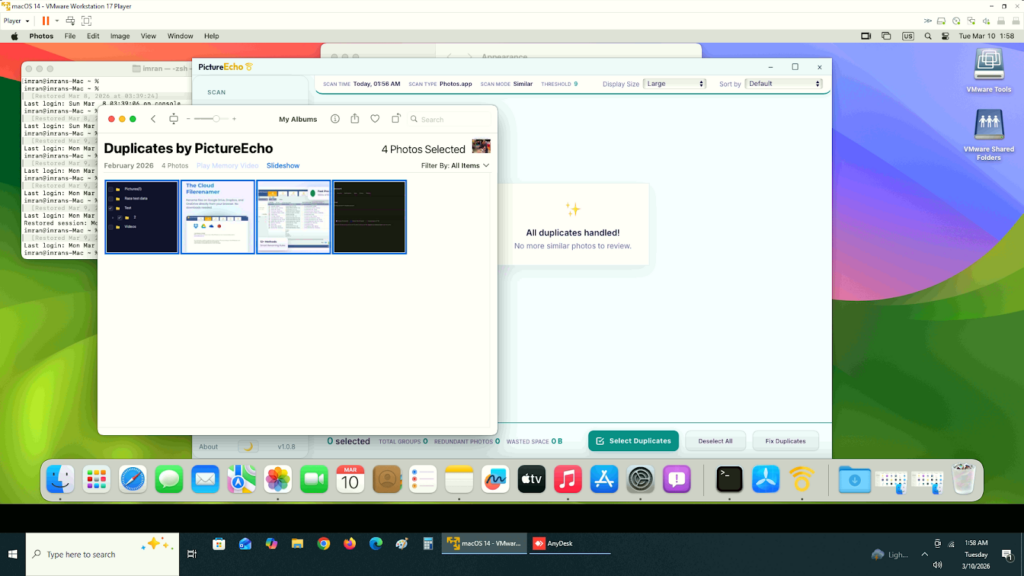
Inside the album, choose Edit → Select All (or ⌘A) to select every photo in that album.
Delete the selected photos (e.g. Image → Delete [X] Photos, or right‑click → Delete [X] Photos). Confirm when Photos asks.
Do not delete the album itself else your duplicates will remain in photos app. Delete only the photos inside it.
After you delete those photos, they are removed from your library and from any other albums they were in. Your library is smaller and the duplicates pictures on Mac are gone.
Why Use an Album Instead of Deleting Directly?
Safety: Nothing is deleted until you do it in Photos. You can open the album and change your mind.
Control: You see exactly which photos are in the album before deleting.
Clarity: One place (“Duplicates by PictureEcho”) shows everything that was marked for removal.
This follows the same idea as moving files to Trash: review first, then delete duplicate pictures on Mac.
Quick Recap
Permission – Give PictureEcho access to your Photos Library (file picker and, if asked, Photos permission).
Scan – Run a duplicate scan (Similar or Exact) and wait for results.
Review – Open duplicate groups and adjust which photo to keep in each group.
Fix Duplicates – Add the chosen photos to the album “Duplicates by PictureEcho” in the Photos app.
Delete in Photos – Open that album in Photos, Select All, delete the photos (not the album).
After that, the duplicates are removed from your Mac Photos library and you’ve done it all yourself, step by step.


