

Downloading your photo archive through Google Takeout can feel like finally taking control of your data. Everything is there in one place. Years of memories, albums, and photos stored across devices.
But once you extract the archive, another problem often pops up. Many users quickly notice that their folders contain hundreds or even thousands of duplicate photos. These can take up valuable storage space and make your photo collection harder to organize.
The good news is that you do not have to sort through these duplicates manually. With PictureEcho, you can quickly scan your Google Takeout archive and identify duplicate or visually similar photos in minutes.
Why Google Takeout Archives Often Contain Duplicate Photos
When you download photos using Google Takeout, the archive may contain more than just your original images. Over time, Google Photos can store multiple versions of the same picture.
Common reasons include:
- Backups from multiple devices such as phones or tablet
- Edited versions of the same image
- Photos synced from shared albums
- Resized or compressed copies
- Photos downloaded and re-uploaded over time
As a result, your exported folders might contain many exact duplicates or visually similar images. Sorting these manually can be time-consuming, especially when your archive contains thousands of photos.
How to Scan Google Takeout Duplicate Photos with PictureEcho
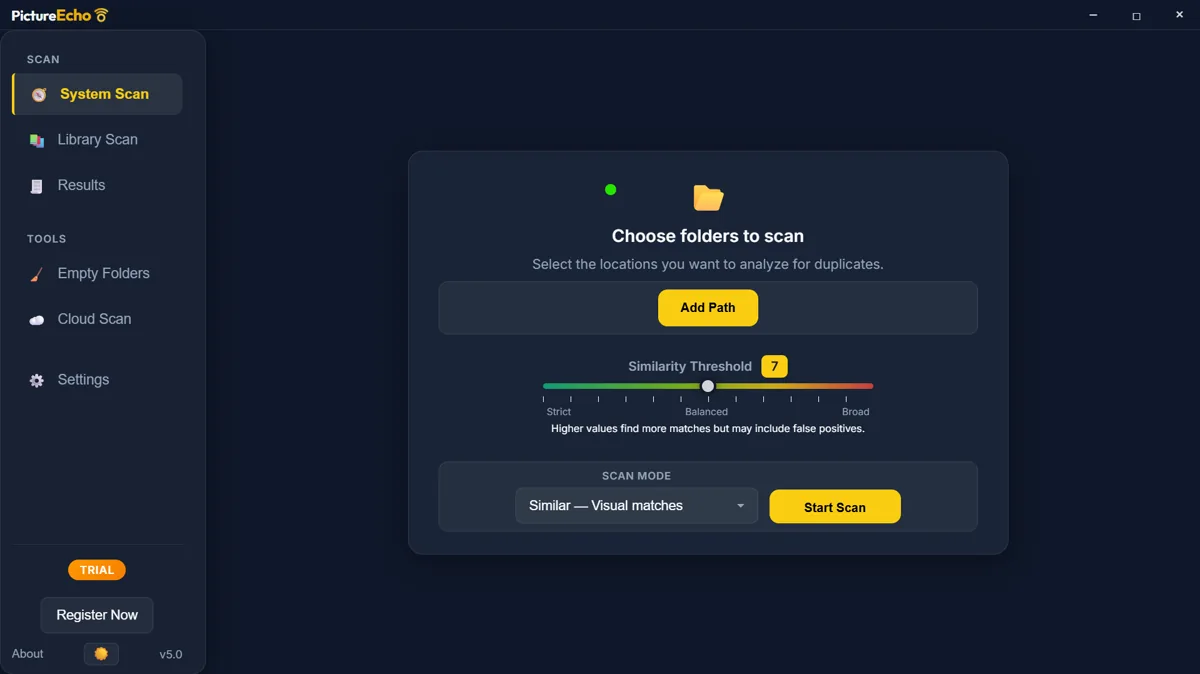
Cleaning up a large Google Takeout archive may seem overwhelming at first. Fortunately, PictureEcho makes the process simple and efficient. Follow the steps below to scan your folders and quickly find duplicate photos.
1. Prepare Your Google Takeout Photos for Scanning
Before scanning for Google Takeout duplicate photos, it helps to organize your downloaded archive.
Follow these quick steps:
- Download your photo archive from Google Takeout.
- Extract the ZIP files that were included in the download.
- Place all extracted folders into one main directory on your computer.
Keeping the files in a single folder makes it easier for duplicate photo finder tools to scan the entire collection at once.
2. Install and Launch PictureEcho
Next, install and open PictureEcho Duplicate Image Finder on your computer.
Once the application is open, use System Scan and Add Path to choose the extracted folder.
For Google Takeout archives, scanning a selected folder usually works best.
3. Select the Folder Containing Your Google Takeout Photos
Now choose the folder that contains the extracted Takeout files.
If Takeout left each album in its own folder, add each of those folders with Add Path.
PictureEcho reads JPEG, PNG, HEIC, TIFF, and common camera RAW types.
This makes it well suited for large or mixed photo libraries.
4. Adjust the Similarity Threshold
One useful feature in PictureEcho is the Similarity Threshold setting. This allows you to control how closely two images must match before they are considered duplicates. The threshold is for similar photos, and a new scan starts at 9. Exact mode is a separate scan, not the Strict end of this slider.
- Strict settings stay closer to photos that look very much alike
- Moderate settings are the usual start for similar photos
- Broader settings find more matches, including edited or resized photos, and can include photos that only look related
Google Takeout archives often contain slightly different versions of the same image, so using a moderate similarity setting can help identify those variations.
5. Start the Scan
After selecting the folder and adjusting the similarity settings, start the scan.
PictureEcho will analyze the images in your archive and identify duplicate or similar photos. Even large collections can usually be scanned quickly.
Instead of presenting a long list of files, the software groups duplicates together visually. This makes it much easier to review the results.
6. Review and Remove Duplicate Photos
Once the scan is complete, PictureEcho displays duplicate images in organized groups.
You can:
- Preview photos side by side
- View image details and metadata
- Select which version of each photo to keep
You can also apply a keep rule: oldest, newest, largest, highest resolution, or lowest resolution. The rule leaves one photo unselected in each group.
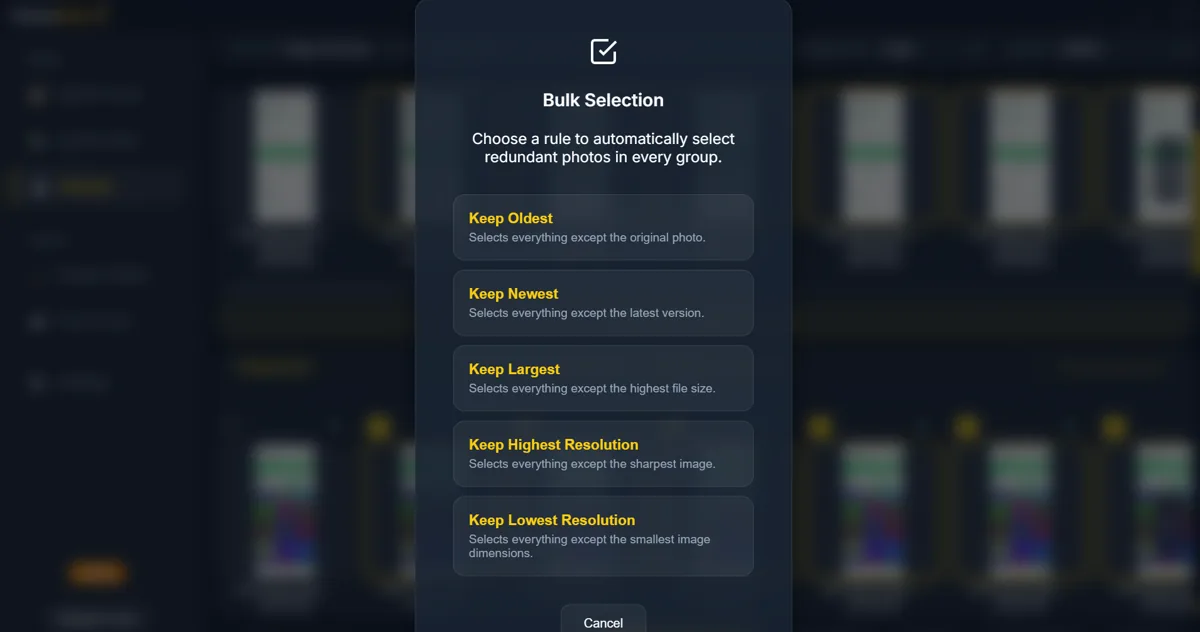
The remaining duplicates can then be removed or moved to another folder. Move sends the extras to a folder you choose, and the files stay on the disk. Recycle Bin is the removal you can undo.
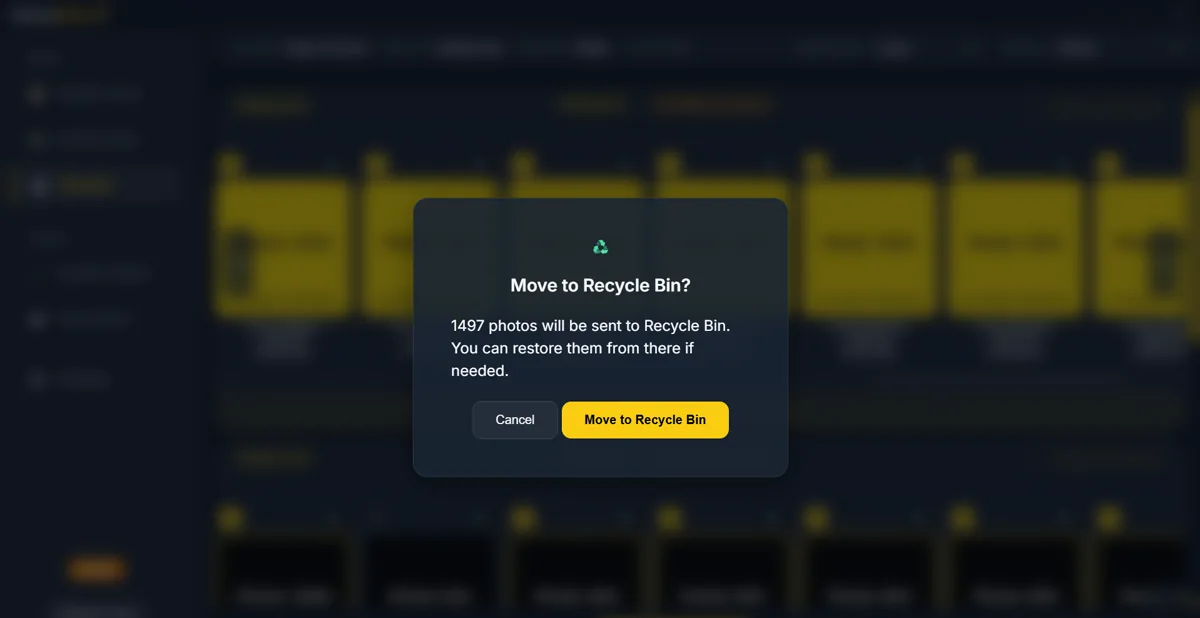
Delete removes the files permanently, and that cannot be undone. The trial cleans up 10 groups. This step allows you to clean up your photo collection while keeping the best versions of your images.
Why PictureEcho Works Well for Google Takeout Photos
Large photo archives often require more than simple filename comparisons. PictureEcho finds both exact matches and visually similar photos.
Key advantages include:
- Fast scanning of large photo collections
- Detection of both duplicate and similar images
- Organized duplicate groups for easier review
- Support for many image formats including RAW files
These features make it easier to clean up Google Takeout archives without spending hours comparing files manually.
Final Thoughts
Exporting your photos through Google Takeout gives you full control over your image library. However, those archives can quickly become cluttered with duplicate and similar photos. Using PictureEcho makes the cleanup process much simpler. In just a few steps, you can scan your downloaded archive, identify duplicates, and organize your photo collection more efficiently.
If your Google Takeout folders contain thousands of images, a quick scan with PictureEcho can save hours of manual work while helping you reclaim valuable storage space.